
Practical GuideApril 2026
How to Send a Fax from Your iPhone
Your iPhone doesn't have a built-in fax feature, but with the right app, you can send a fax in under two minutes. No fax machine, no scanner, no computer needed. Just your phone, a document, and a fax number. Here's exactly how to do it.
Fastest Method
Download Fax.Plus from the App Store (free, 10 pages/month). Open the app → tap "Send Fax" → scan your document with your camera or upload a PDF → enter the fax number → tap Send. Total time: about 90 seconds.
Can You Send a Fax Directly from an iPhone?
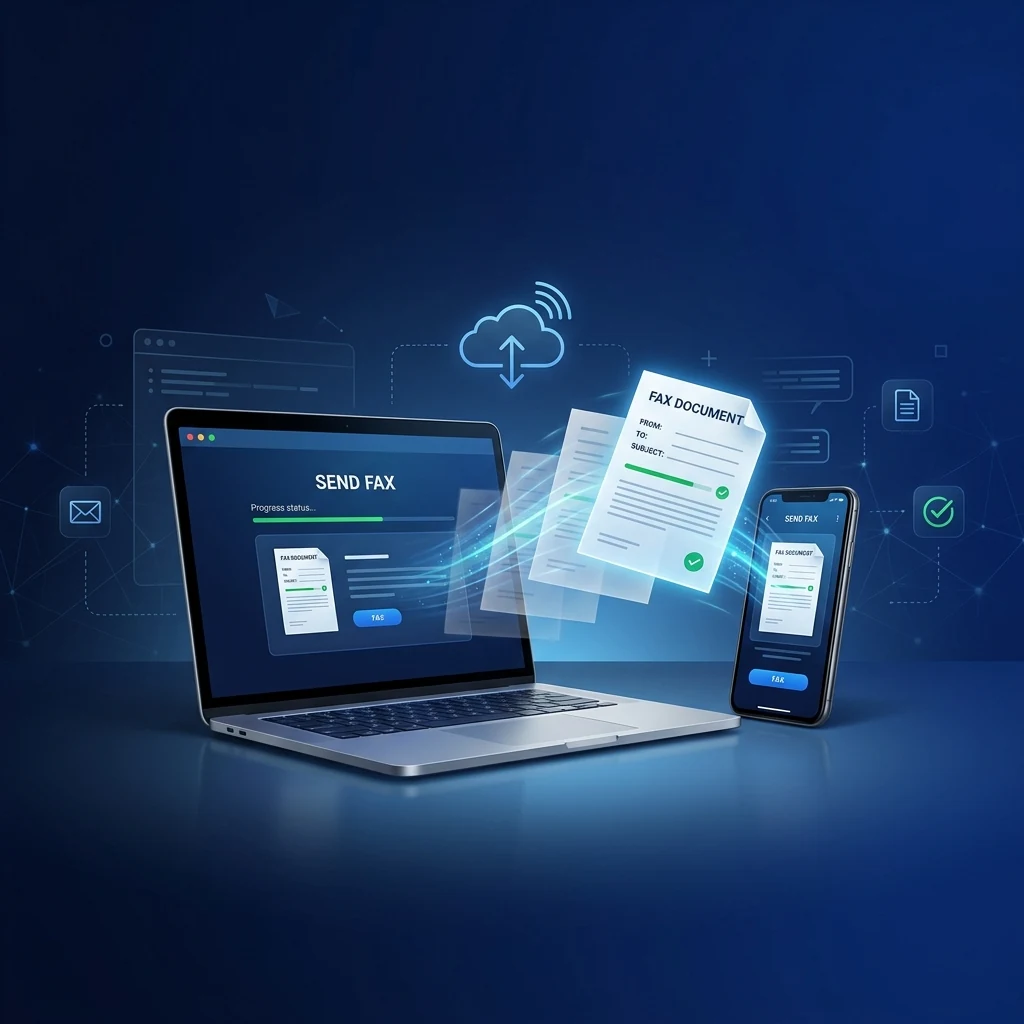
Not natively. Apple has never added fax functionality to iOS. But third-party apps fill this gap seamlessly. The fastest method is a dedicated fax app: download from the App Store, snap a photo of your document with the iPhone camera or import a PDF, enter the fax number, and tap Send. The app converts your file to a fax signal and transmits it over the phone network.
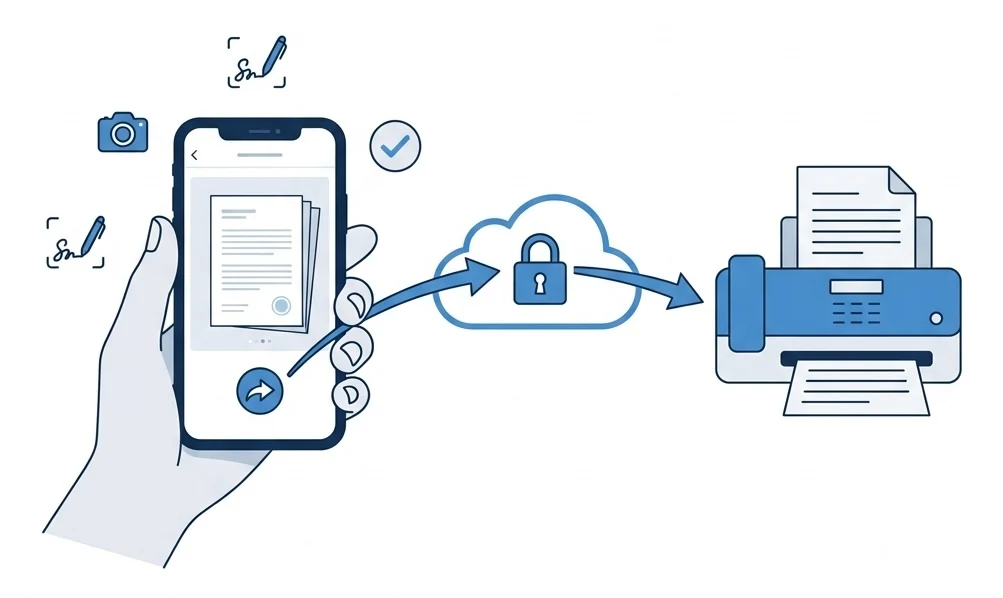
Method 1: Dedicated Fax App (Recommended)
This is the easiest and most reliable way to fax from an iPhone. Fax apps are purpose-built for mobile: they include a document scanner, contact management, delivery confirmations, and cloud storage integration. Most offer a free tier to get started.
Download a fax app
Open the App Store and download Fax.Plus (free, 4.8★ rating, 10 pages/month). Create an account with your email. Takes 30 seconds.
Scan or upload your document
Tap "Send Fax" and choose your source: Camera (snap a photo; the app auto-crops and enhances), Photos (pick from your library), Files (import a PDF from iCloud, Google Drive, or Dropbox), or Email (forward an attachment).
Enter the fax number
Type the destination fax number with country code (e.g., +1 for US/Canada, +44 for UK). Or pick from your contacts if you've saved fax numbers before. Add a cover page if needed.
Tap Send, and you're done
Hit Send. The app converts your document to a fax signal and transmits it. You'll get a delivery confirmation push notification, usually within 1 to 3 minutes. The sent fax is saved in your app history.
Best iPhone Fax Apps Compared
| App | Free Plan | App Store Rating | Price | Scanner |
|---|---|---|---|---|
| Fax.Plus | 10 pages/mo | 4.8★ | $6.99/mo | ✓ |
| CocoFax | 10 pg trial | 4.6★ | $4.99/mo | ✓ |
| iFax | 5 pages | 4.7★ | $8.33/mo | ✓ |
| eFax | ✕ | 3.5★ | $18.99/mo | ✓ |
Video Tutorial: Fax.Plus on iPhone
Demo: Send a fax from iPhone with the Fax.Plus app
Method 2: Email-to-Fax from iPhone Mail
If you'd rather not install an app, you can send a fax using your iPhone's built-in Mail app (or Gmail, Outlook, etc.). The process is the same as on a computer: compose an email to [email protected], attach your document, and hit Send.
How It Works
- Sign up at Fax.Plus and register your email
- Open Mail app → New Message
- To:
[email protected] - Attach your PDF or image
- Tap Send: confirmation arrives by email
Best For
- Users who don't want to install apps
- Sending faxes from any email client
- Keeping fax history in your email archive
- Works on any iPhone model, any iOS version
For the full email-to-fax walkthrough, see our Gmail fax guide or best email fax services.
Method 3: Web-Based Fax Service (No App Required)
Open Safari on your iPhone, go to a fax service website, upload your document, enter the fax number, and send. No app download, no account required for some services.

FaxZero: 100% free, no signup
5 faxes/day (3 pages each) to US/Canada. Just open faxzero.com in Safari, fill the form, attach your file, and send. The only truly free option for one-off faxes.
Fax.Plus Web: Works in Safari
The Fax.Plus web interface is fully mobile-responsive. Send faxes from Safari without downloading the app. Same free 10 pages/month.
Method 4: Scan with iPhone Camera + Upload
If you have a paper document, your iPhone's built-in scanner is your best friend. iOS has a document scanner built into the Notes app and the Files app, no third-party scanner app needed.
Using the Built-In Scanner
- Open Notes → tap the camera icon → Scan Documents
- Position your document: the iPhone detects edges automatically
- Tap to capture → adjust corners if needed → Save
- Tap the scan → Share → Create PDF
- Upload the PDF to your fax app or email it to your fax service
Quality Tip
For the best fax quality, scan in good lighting, keep the phone parallel to the document, and use the built-in auto-crop. Faxes are sent at 200 DPI; blurry photos will produce unreadable faxes. When in doubt, use a PDF rather than a photo.
Faxing from iPhone: Pros and Cons
Pros
- Always in your pocket: fax from anywhere, anytime
- Built-in scanner: no separate scanning device needed
- Push notifications: instant delivery confirmation
- Free options: Fax.Plus gives 10 pages/month free
- Cloud integration: send from iCloud, Google Drive, Dropbox
- E-signature: sign documents with your finger before faxing
Cons
- No native iOS feature: you need a third-party app or service
- Free plans are limited: 10 pages/month won't cover heavy use
- Camera scans vary: quality depends on lighting/steadiness
- Receiving is paid: free plans typically only send
- Data usage: requires Wi-Fi or cellular data
Fax.Plus: Built for iPhone
4.8★ App Store rating. Built-in scanner, cloud integration, e-signature, push notifications. 10 free pages/month. Send to 190+ countries.
Frequently Asked Questions
Can I send a fax from my iPhone for free?
Yes. Fax.Plus offers 10 free pages/month from their iOS app. FaxZero lets you send up to 5 free faxes/day to US/Canada numbers via their mobile website. See our free fax guide for more options.
What's the best fax app for iPhone?
Fax.Plus is our top pick: 4.8★ rating, free plan, built-in scanner, and e-signature. For a signed BAA at a published price: iFax Plus ($24.99/mo). CocoFax advertises HIPAA from $4.99/mo, but its BAA is only provided on request through an Enterprise quote.
Can I fax a photo from my iPhone?
Yes. All fax apps accept photos from your Camera Roll. For best results, use the built-in document scanner (Notes app → Scan Documents) which auto-crops and enhances readability.
Do I need a phone line to fax from iPhone?
No. iPhone fax apps use your internet connection (Wi-Fi or cellular data) to send the fax. The app's server handles the actual phone-line transmission. You never need a landline.
Can I receive faxes on my iPhone?
Yes. With a paid plan from Fax.Plus, CocoFax, or eFax, you get a dedicated fax number. Incoming faxes arrive as PDF notifications on your iPhone. Most free plans are send-only.