Practical GuideApril 2026
How to Send a Fax from a Mac
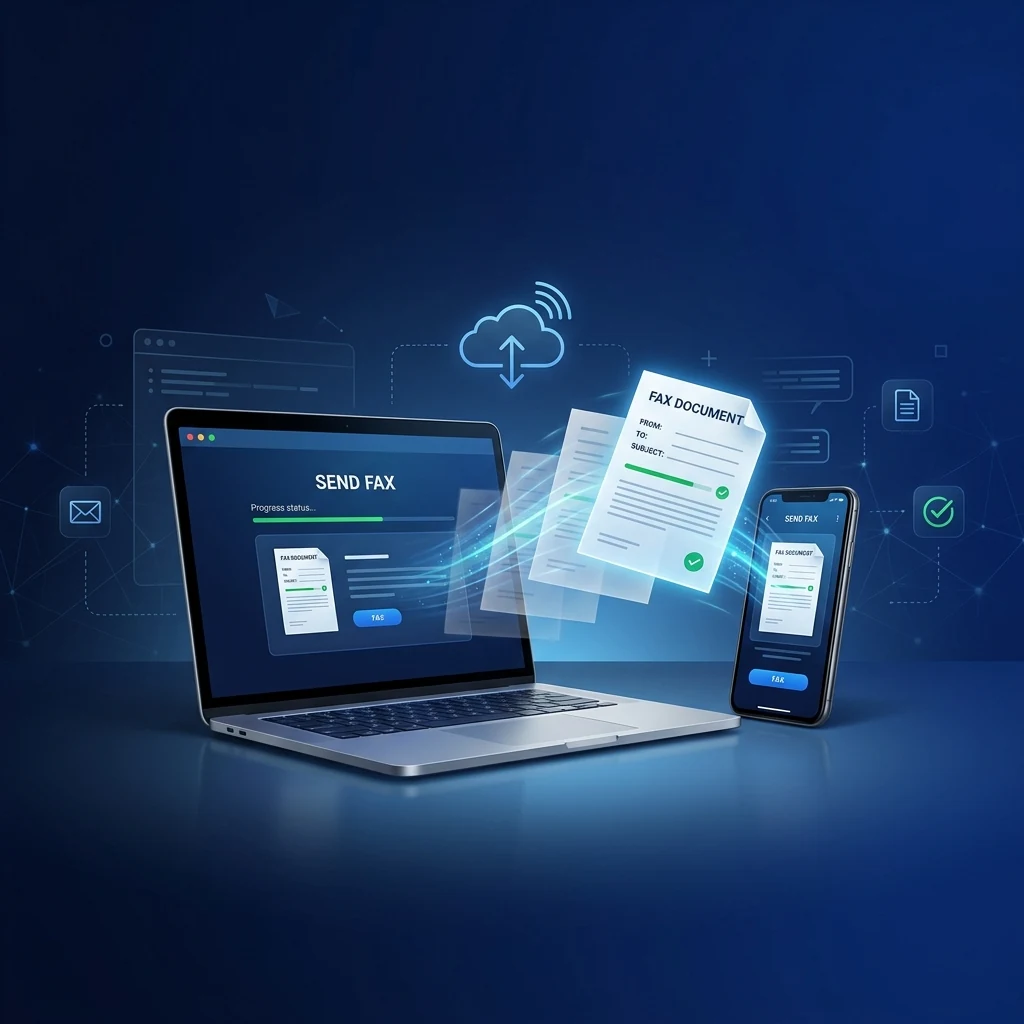
Apple removed Mac's built-in fax driver in 2019. But that doesn't mean you can't fax from your MacBook, iMac, or Mac Mini. With a web-based fax service, you can send and receive faxes in Safari: no hardware, no phone line, no App Store download. Here are three tested methods.
Why Can't My Mac Fax Natively?
Before macOS Catalina (2019), Macs could fax via the print dialog, File → Print → Fax, if connected to a phone line through a USB modem. Apple removed this feature entirely. On macOS Catalina, Big Sur, Monterey, Ventura, Sonoma, and Sequoia, there is no Fax option in the Print dialog and no built-in fax driver.
The good news? Online fax services are faster, easier, and more secure than the old method ever was. Here's the fastest way:
Fastest method
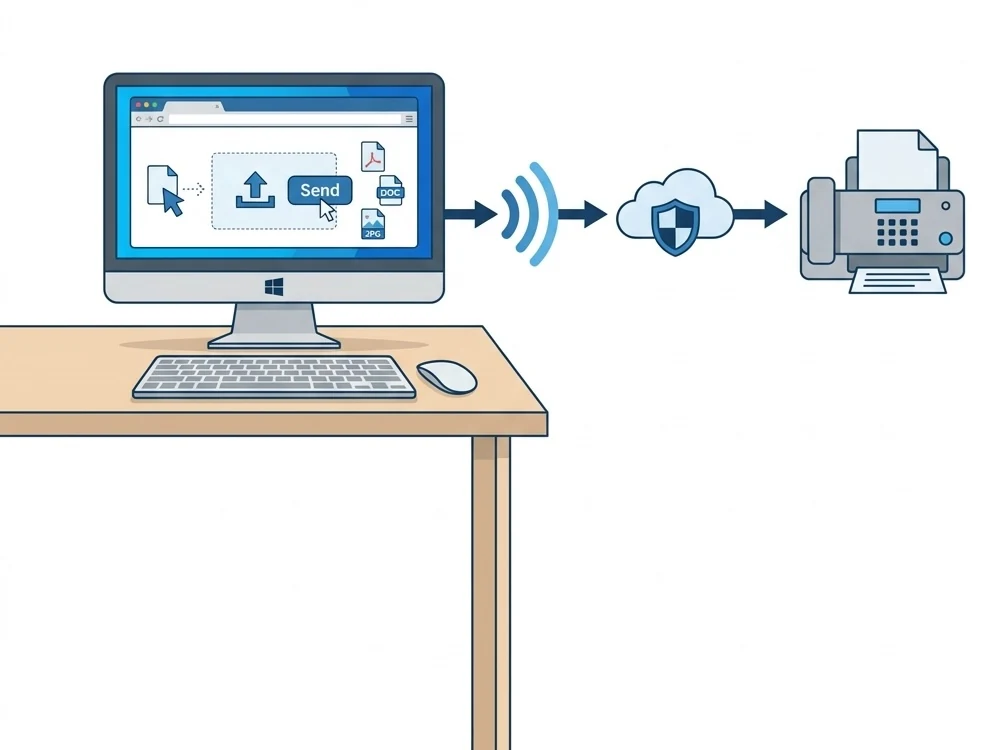
Open Fax.Plus in Safari → create a free account → click "Send Fax" → enter the fax number → upload your PDF → click Send. Done in 90 seconds. 10 free pages per month.
Method 1: Online Fax Service in Safari (Easiest)
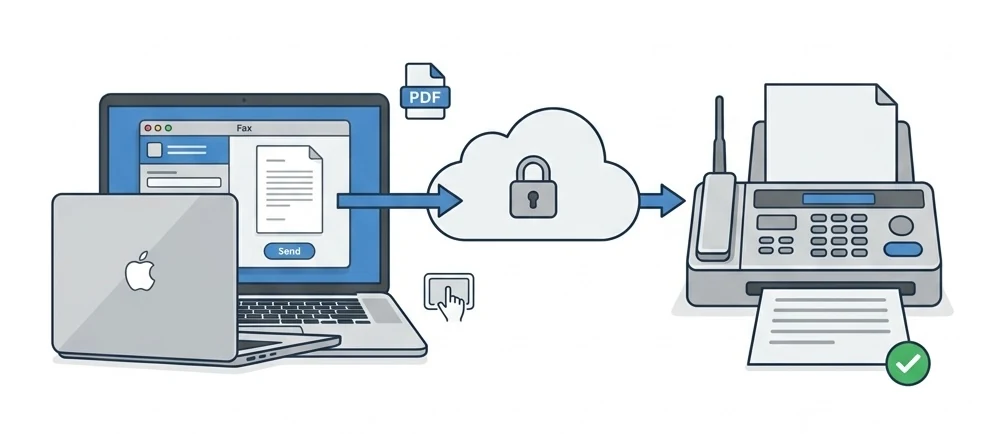
The most straightforward approach. Open a fax service in your browser, upload your document, enter the fax number, and click Send. Works in Safari, Chrome, and Firefox. No plugins, no downloads.
Create a free account
Go to Fax.Plus in Safari (10 free pages/month, no credit card). Registration takes 30 seconds with email or Google sign-in.
Click "Send Fax" and enter the recipient
From the dashboard, click "Send Fax." Enter the full fax number with country code (e.g., +1 555 123 4567). Add a cover page note if needed.
Upload your document
Drag and drop or click Browse. Supported formats: PDF, Word (.docx), Pages (export as PDF first), images (JPG, PNG, TIFF). Tip: use File → Export as PDF in any Mac app to get a fax-ready file.
Hit Send: delivery confirmed
Click Send. The service converts your file and transmits it over the fax network. You'll receive a delivery confirmation by email within 1–3 minutes.
Mac-specific tip
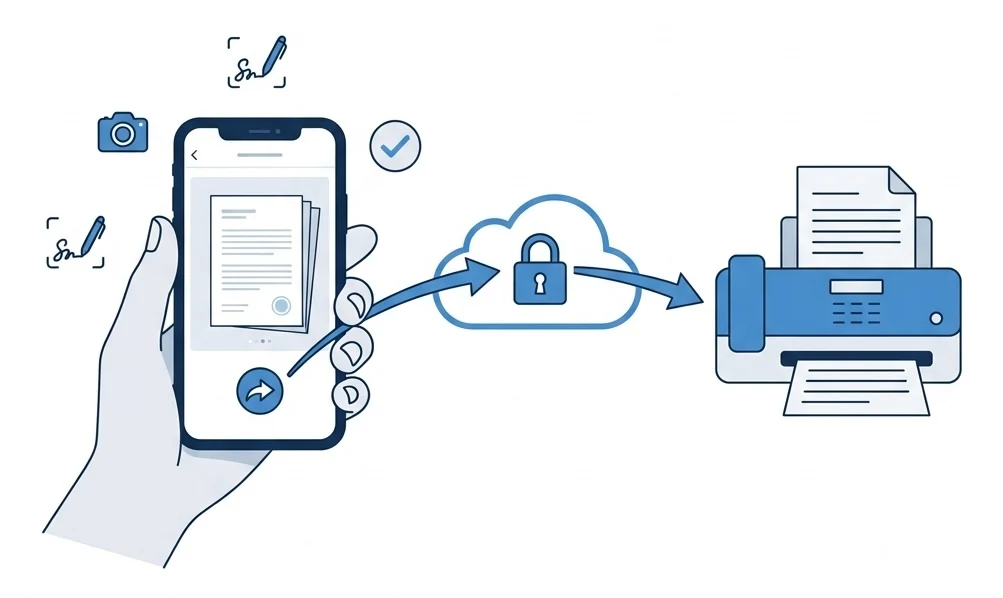
If you need to fax a Pages, Keynote, or Numbers document, use File → Export as PDF first. All fax services accept PDF. You can also scan physical documents using your iPhone's camera via Continuity Camera (Command + Shift + camera icon in Finder), then upload the scan directly.
Method 2: Email-to-Fax via Apple Mail
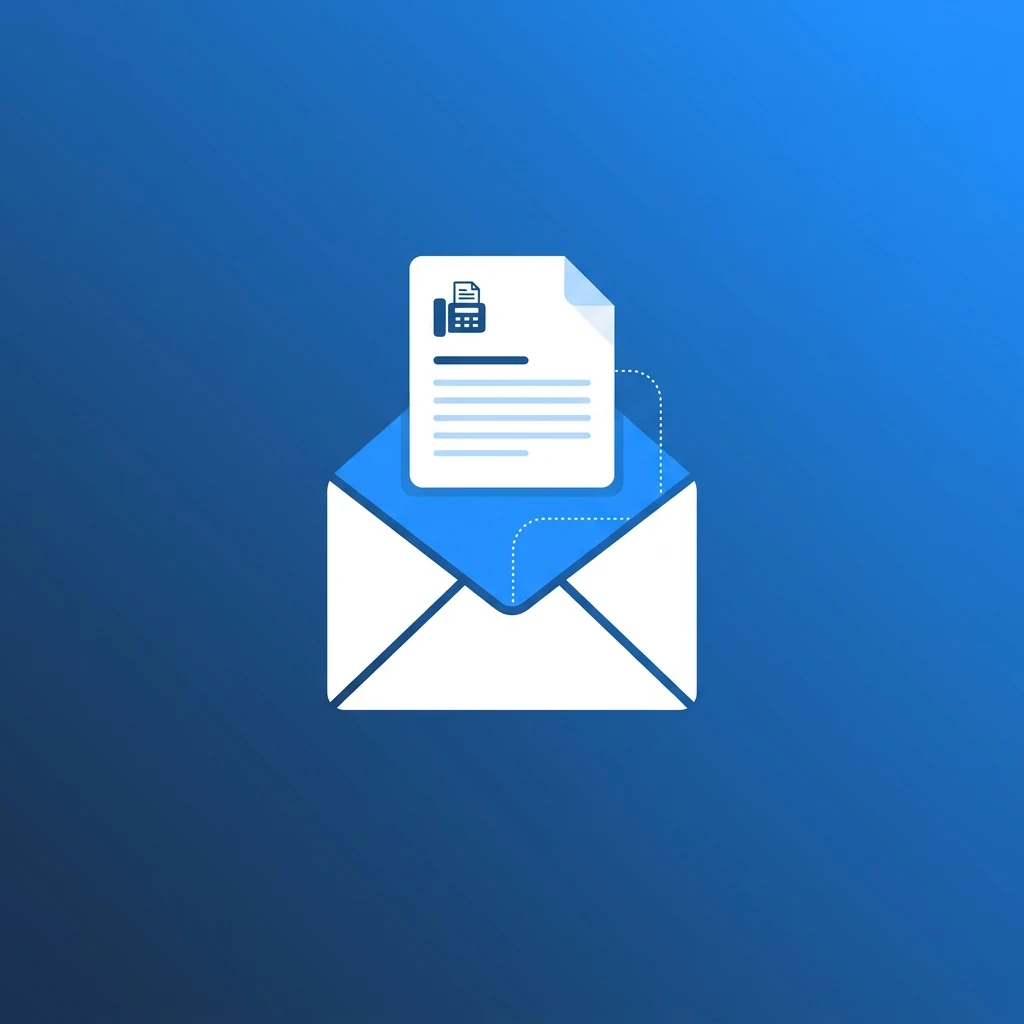
If you prefer staying in Apple Mail, this method lets you send faxes without opening a web browser. Compose an email, attach your document, and the fax service handles the delivery.
Register your Apple Mail address
Create an account at Fax.Plus and register the email address you use in Apple Mail. This is a security step: only authorized addresses can send faxes.
Compose a new email
In the "To" field, type the fax number followed by your provider's domain: [email protected]. The subject line becomes the cover page text. The email body is optional.
Attach your PDF and send
Drag a PDF into the email or use the paperclip icon. Hit Send. The fax service receives the email, converts your attachment, and transmits it. Delivery receipt arrives in your Apple Mail inbox within minutes.
Email-to-fax addresses by provider
| Provider | Format | Example |
|---|---|---|
| Fax.Plus | [email protected] | [email protected] |
| eFax | [email protected] | [email protected] |
| MyFax | [email protected] | [email protected] |
Method 3: Preview + Free Web Fax (One-Off)
Need to fax a single document without creating any account? Here's a Mac-native workflow using Preview and a free web service:
Open your document in Preview
Double-click any image, scan, or PDF to open it in Preview. If you're working in Pages, Keynote, or any app, use File → Export as PDF. Preview can also annotate, crop, and rotate pages before faxing.
Go to FaxZero (100% free)
Open FaxZero.com in Safari. No sign-up required, just a web form. Limited to US/Canada destinations, 5 faxes/day, 3 pages each. FaxZero adds branding to the cover page (removable for $1.99).
Upload your PDF and send
Fill in the sender info, recipient fax number, upload your PDF. Click "Send Free Fax." You'll receive an email confirmation once delivered, typically under 5 minutes.
Limitation
FaxZero only covers US and Canada. For international fax (Europe, Asia, etc.), use Fax.Plus: 10 free pages/month to 190+ countries, with a clean cover page and no branding.
Faxing from Mac vs. Windows vs. iPhone
Here's how Mac stacks up against other devices for faxing:
| Feature | Mac | Windows | iPhone |
|---|---|---|---|
| Native fax support | ✕ Removed 2019 | ⚠️ Requires modem | ✕ None |
| Online fax (browser) | ✓ Safari/Chrome | ✓ Any browser | ✓ Safari |
| Email-to-fax | ✓ Apple Mail | ✓ Outlook | ✓ Mail app |
| Document scanning | ✓ Continuity Camera | ⚠️ External scanner | ✓ Camera app |
| Best method | Online service | Online service | Fax app |
For device-specific guides, see our computer fax guide or our iPhone fax guide.
Best Fax Services for Mac Users: Comparison
Every service below works in Safari, Chrome, and Firefox on macOS. We tested each one on a MacBook Pro running Sequoia:
| Service | Safari | Apple Mail | Free Plan | Price | HIPAA |
|---|---|---|---|---|---|
| Fax.Plus | ✓ | ✓ | 10 pg/mo | $6.99/mo | ✓ |
| CocoFax | ✓ | ✓ | 10 pg trial | $4.99/mo | Claimed |
| eFax | ✓ | ✓ | $5 1st mo | $18.99/mo | — |
| FaxZero | ✓ | ✕ | 100% free | Free | ✕ |
For the full comparison with all 10 services, see our 2026 fax service rankings.
Pros and Cons of Faxing from a Mac
Pros
- No hardware needed: no fax machine, modem, or phone line
- Works on any Mac: MacBook Air, Pro, iMac, Mac Mini, Mac Studio
- Safari-native: no App Store downloads required
- Continuity Camera: scan documents with your iPhone, fax from your Mac
- Free options: FaxZero (US/CA) and Fax.Plus (10 pages/month worldwide)
- Send and receive: get a dedicated fax number, receive as PDF in Apple Mail
Cons
- No native macOS fax: Apple removed the driver in 2019
- Internet required: no offline faxing
- Free plan limits: heavy users need a paid subscription ($4.99–$6.99/mo)
- Receiving costs extra: free plans usually cover sending only
- No App Store fax apps: web-based services are better than Mac App Store options
Fax.Plus: Perfect for Mac
Works flawlessly in Safari and Chrome. Email-to-fax via Apple Mail. 10 free pages/month to 190+ countries. HIPAA and SOC 2 compliant. The smoothest Mac fax experience we've tested.
Frequently Asked Questions
Does macOS have a built-in fax option?
Not anymore. Apple removed the built-in fax driver in macOS Catalina (2019). Older Macs running Mojave or earlier could fax via Print → Fax with a phone line, but modern Macs (Catalina through Sequoia) have no native fax capability. Use an online fax service instead.
Can I send a fax from my Mac for free?
Yes. FaxZero is 100% free for US/Canada (5 faxes/day, 3 pages each). Fax.Plus gives 10 free pages/month to 190+ countries. Both work in Safari. See our free fax guide for all options.
Do I need to install any software on my Mac?
No. All recommended methods work in your browser: Safari, Chrome, or Firefox. No downloads, no system extensions, no admin passwords needed.
Can I receive faxes on my Mac?
Yes. Sign up with a fax service to get a dedicated fax number. Incoming faxes arrive as PDF attachments in your email (Apple Mail, Gmail, etc.). Open them in Preview, save to iCloud, or print.
Is it secure to fax from a Mac?
Yes, and more secure than a physical fax machine. Fax.Plus uses TLS encryption in transit, AES-256 at rest, and is HIPAA/SOC 2 compliant. CocoFax also advertises GDPR and PHIPA, though those claims are self-attested.
Can I use Apple Mail to send a fax?
Yes, via email-to-fax. Register your Apple Mail address with a fax service, then compose an email to [email protected]. Attach your PDF and hit Send. The service handles conversion and delivery.